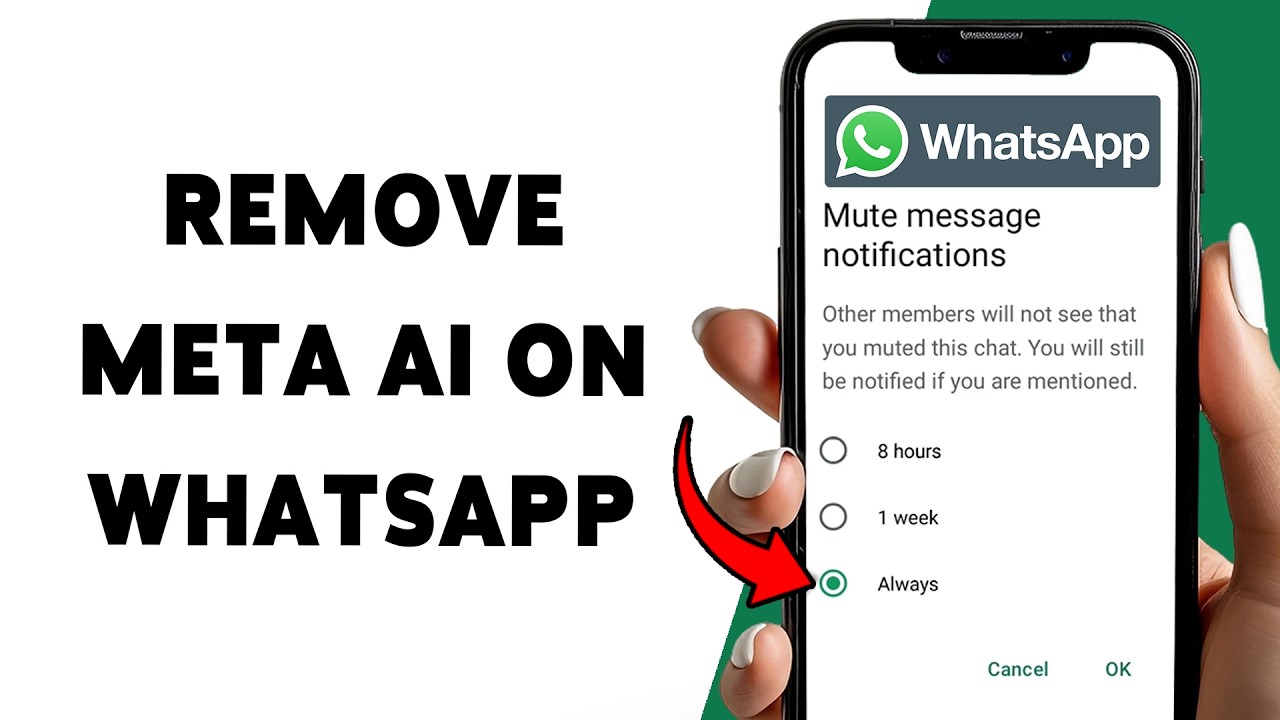
You cannot fully delete or uninstall Meta AI from WhatsApp — it’s built into the app the same way the camera or Status tab is, and Meta has not added a master off switch. What you can do is make it invisible and inactive in your day-to-day use: mute or archive the Meta AI chat, block it from reading your messages in specific chats using Advanced Chat Privacy, reset its memory of you, and tighten related privacy settings so it has less data to work with. For most users, that combination is functionally “disabled” — you’ll never see or interact with it again.
Below is a full breakdown of every method that actually works in 2026, plus a few that don’t (so you don’t waste time on them).
Why You Can’t Fully Remove Meta AI
WhatsApp rolled AI features out to everyone without an opt-in prompt, and unlike a downloaded chatbot, Meta AI is compiled directly into the app itself. There’s no “uninstall assistant” button, and deleting a conversation with it doesn’t strip the underlying feature out of the app. This is consistent across regions, though a small number of markets with stricter tech regulation have seen limited exceptions.
That said, “can’t remove” is not the same as “can’t control.” The steps below cover every setting that meaningfully reduces or blocks its presence.
1. Mute or Archive the Meta AI Chat
The fastest fix, and the one most people reach for first:
- Long-press the Meta AI chat in your chat list
- Choose Mute → Until I change it to stop notifications
- Or choose Archive to remove it from your main inbox
- Or Delete chat to clear it from view entirely
Keep in mind this is cosmetic. It tidies your inbox but doesn’t switch the feature off at the system level, and archiving doesn’t stop the chat from reappearing if Meta AI messages you again later.
2. Block Meta AI From Reading a Specific Chat
This is the closest thing to a real “off switch,” and it works per-conversation:
- Open the chat (individual or group) you want to protect
- Tap the contact or group name at the top to open chat settings
- Scroll to Advanced Chat Privacy
- Toggle it on
Once enabled, WhatsApp will not allow AI features to draw on that chat’s messages, and typing “@Meta” in that thread will trigger a warning that Meta AI isn’t available there. Group admins may need to apply this per group, and it needs to be turned on separately for each chat you want covered — there’s no bulk toggle.
3. Reset Meta AI’s Memory of You
If you’ve used Meta AI before and want it to forget your history:
- Open the Meta AI chat
- Type
/reset-aiand send it
This clears what the assistant remembers from your past interactions. Some regions support /reset-all-ais, which clears context across other Meta apps as well.
4. Tighten Related Privacy Settings
None of these disable Meta AI directly, but they reduce the data it (and WhatsApp generally) has access to:
- Read receipts: Settings → Account → Privacy → toggle off “Read Receipts”
- Last seen and online status: Settings → Privacy → set to “Nobody” or “My Contacts”
- Notifications: Settings → Notifications → turn off AI-related suggestion alerts
5. Use Incognito Chat (Private Processing)
As of May 2026, WhatsApp introduced an Incognito Chat mode for Meta AI, built on what Meta calls “Private Processing.” Conversations run in an isolated environment that Meta says its own staff cannot access, and the chat is deleted once you close it. This doesn’t disable Meta AI, but if you’re required to interact with it at all, it’s the more private way to do so. Your regular personal chats remain end-to-end encrypted throughout, independent of this setting.
6. The Language Workaround (Niche, Not Recommended)
Meta AI currently supports a limited set of languages. Switching your WhatsApp app language (Settings → App Language) to one it doesn’t support can make the AI button disappear. The catch: this changes your entire app’s language, not just the AI feature, so it’s really only practical if you’re comfortable using WhatsApp in a second language.
7. For WhatsApp Business Accounts
If you’re on WhatsApp Business and have enabled bots or smart-reply automation through third-party integrations:
- Open Settings
- Go to Business Tools
- Disable the relevant automation features there
This is separate from the consumer Meta AI assistant and needs to be turned off independently.
What Doesn’t Work
- Uninstalling or “removing” Meta AI as a separate app — it isn’t one; it’s part of WhatsApp itself
- Hoping an update removes it — if anything, updates are more likely to add new AI touchpoints, not remove existing ones
- Deleting the AI chat as a permanent fix — it can reappear, and it doesn’t disable the underlying feature
Quick Reference Table
| Action | What it does | Fully disables AI? |
|---|---|---|
| Mute/Archive Meta AI chat | Hides it from your inbox | No — cosmetic only |
| Advanced Chat Privacy | Blocks AI from reading that specific chat | Closest to “off” per-chat |
/reset-ai |
Clears its memory of past chats with you | No — resets, doesn’t disable |
| Privacy settings (read receipts, last seen) | Reduces data available to AI/WhatsApp generally | No — indirect |
| Incognito Chat | Processes AI chats in an isolated, deleted-on-close environment | No — makes usage private, not absent |
| Change app language | May hide the AI button if language is unsupported | Partial, with major trade-off |
Frequently Asked Questions
Can I completely remove Meta AI from WhatsApp in 2026? No. It’s built into the app rather than existing as a separate installable feature, and Meta has confirmed there’s no master off switch. You can mute it, block it from specific chats, and limit what it knows, but not delete it outright.
Will Meta AI come back after I mute or archive it? Yes, it can reappear in your inbox if it messages you again, since muting and archiving don’t disable the underlying feature.
Does Advanced Chat Privacy stop AI features in groups too? Yes, but it typically needs to be enabled per chat, and in groups a group admin may need to be the one to turn it on.
Are my regular WhatsApp chats still end-to-end encrypted with Meta AI enabled? Yes. Your personal conversations with other people remain end-to-end encrypted regardless of your Meta AI settings; encryption only doesn’t apply to messages you send directly to the AI itself.
Will WhatsApp add a real “turn off AI” setting in the future? There’s no confirmed timeline for this. Given how deeply the feature is integrated, it’s worth periodically checking Settings after app updates, as new controls have been added gradually since the feature’s rollout.